> ## Documentation Index
> Fetch the complete documentation index at: https://docs.upmeet.me/llms.txt
> Use this file to discover all available pages before exploring further.
# Using the Admin Dashboard
> Managing and creating rooms in the dashboard
 ## Overview
**Available on all plans**
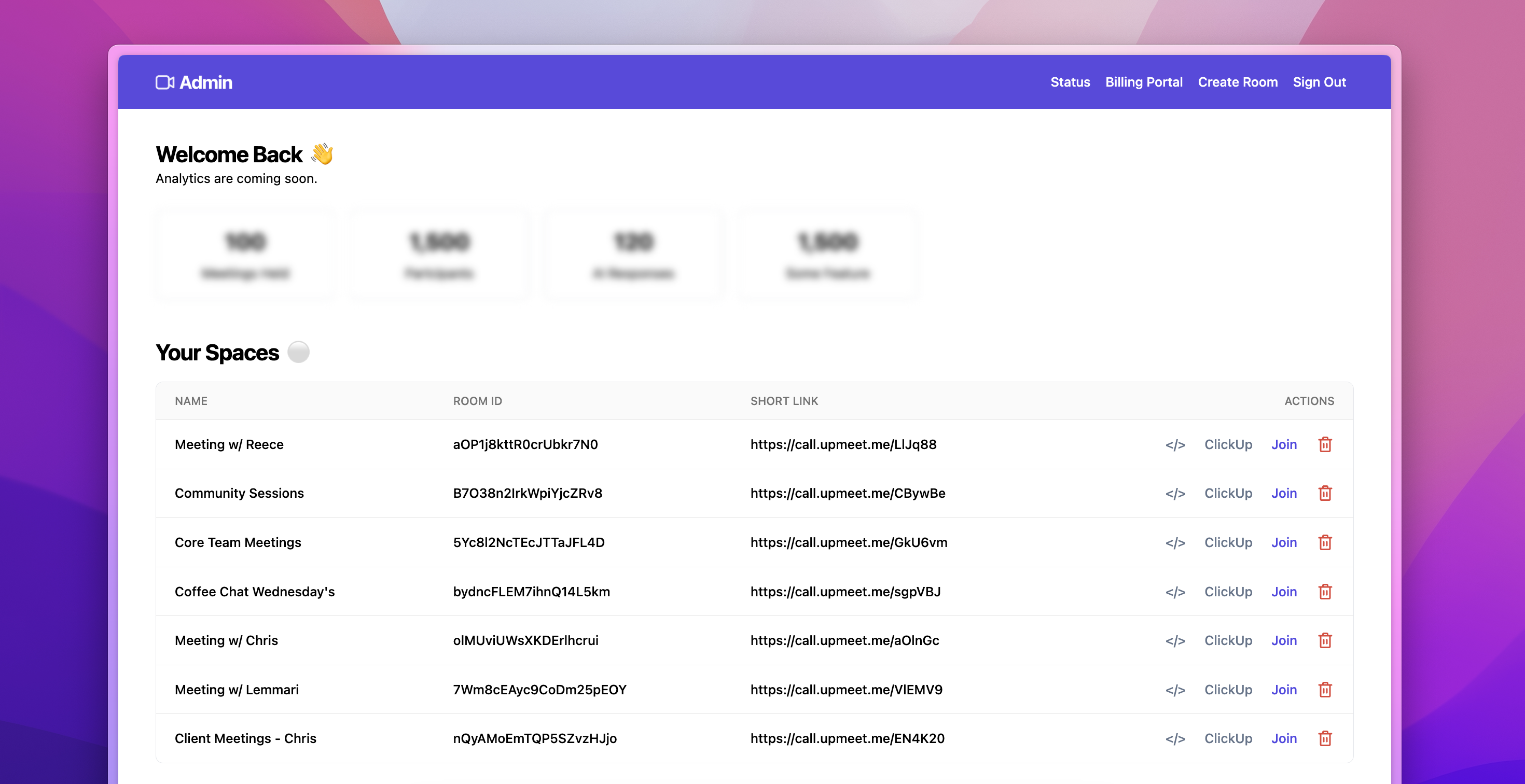
The dashboard is the place to create and manage all your rooms. You can also access user resources like: service status, billing and our weekly changelog of improvements and updates.
### Creating rooms
* **Internal Name (Required):** Name of room shown in dashboard
* **HEX Code:** #000000 format
* **Logo:** A https\:// link to an colour image to be shown in your meeting
* **Topic:** Will be shown in the meetings toolbar along with the current time
## Overview
**Available on all plans**
The dashboard is the place to create and manage all your rooms. You can also access user resources like: service status, billing and our weekly changelog of improvements and updates.
### Creating rooms
* **Internal Name (Required):** Name of room shown in dashboard
* **HEX Code:** #000000 format
* **Logo:** A https\:// link to an colour image to be shown in your meeting
* **Topic:** Will be shown in the meetings toolbar along with the current time
 ### Managing rooms
In the actions column of the "Spaces" table there are 4 actions:
* **``**: This will copy embed code of the meeting room to your clipboard.
* **"ClickUp"** Integration: This will copy a link to add to your ClickUp List or Dashboard.
* **"Join"**: This button will take you to the meeting of that row.
* **"🗑️"** (red delete bin): This will permanently delete the room and cannot be recovered.
### Managing rooms
In the actions column of the "Spaces" table there are 4 actions:
* **``**: This will copy embed code of the meeting room to your clipboard.
* **"ClickUp"** Integration: This will copy a link to add to your ClickUp List or Dashboard.
* **"Join"**: This button will take you to the meeting of that row.
* **"🗑️"** (red delete bin): This will permanently delete the room and cannot be recovered.